AvPlan EFB - Electronic Flight Bag Logo AvPlan EFB - Electronic Flight Bag Alternate Logo AVPlan Logo
    Select Currency
  • Flag AUD
    Australian dollar
    • Flag AUD
      Australian dollar
    • Flag USD
      United States (US) dollar
    • Flag EUR
      Euro
    • Flag GBP
      Pound sterling
    • Flag NZD
      New Zealand dollar
  • Cart
  • Login
  • TRY FOR FREE
  • Features
  • Solutions
    • Private Aviation
    • Business Aviation Solutions
    • SAR/EMS
    • Military Aviation
  • Subscriptions
    • Australian Subscriptions
    • New Zealand Subscriptions
    • US Subscriptions
    • European Subscriptions
    • Middle East Subscriptions
    • Worldwide Subscriptions
    • AvPlan Enterprise
  • Other Products
    • AvPlan OMNI
    • Aviation Data for Dynon SkyView
    • Command Flight Planner
    • Are you ok2fly?
    • Compatible Hardware
  • Learn
    • User Manuals
    • Webinars
    • Video Tutorials
    • Blog
    • Frequently Asked Questions
  • Contact
  • AvPlan Web
  • Login
  • TRY FOR FREE
  • Cart
  • Flag AUD
    Australian dollar
    • Flag AUD
      Australian dollar
    • Flag USD
      United States (US) dollar
    • Flag EUR
      Euro
    • Flag GBP
      Pound sterling
    • Flag NZD
      New Zealand dollar
  • Home
  • Blog
  • AvPlan EFB 10.2: What’s New
AvPlan

AvPlan EFB 10.2: What’s New

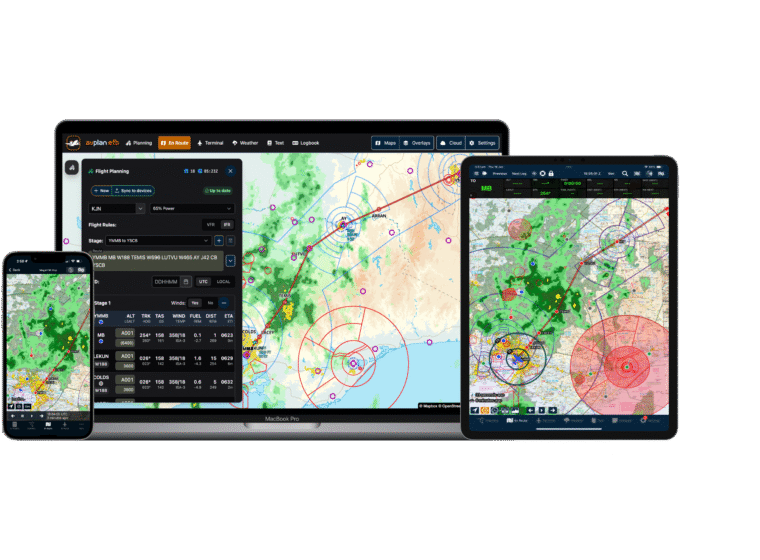
AvPlan EFB 10.2 gives iPad pilots a Notepad library with reusable forms and brings guided PDF import to iPhone and iPad. It also adds a clearer breakdown of Additional Fuel and brings route map and weather downloads together in Offline Data.

Use the new Notepad on iPad

Create a sheet

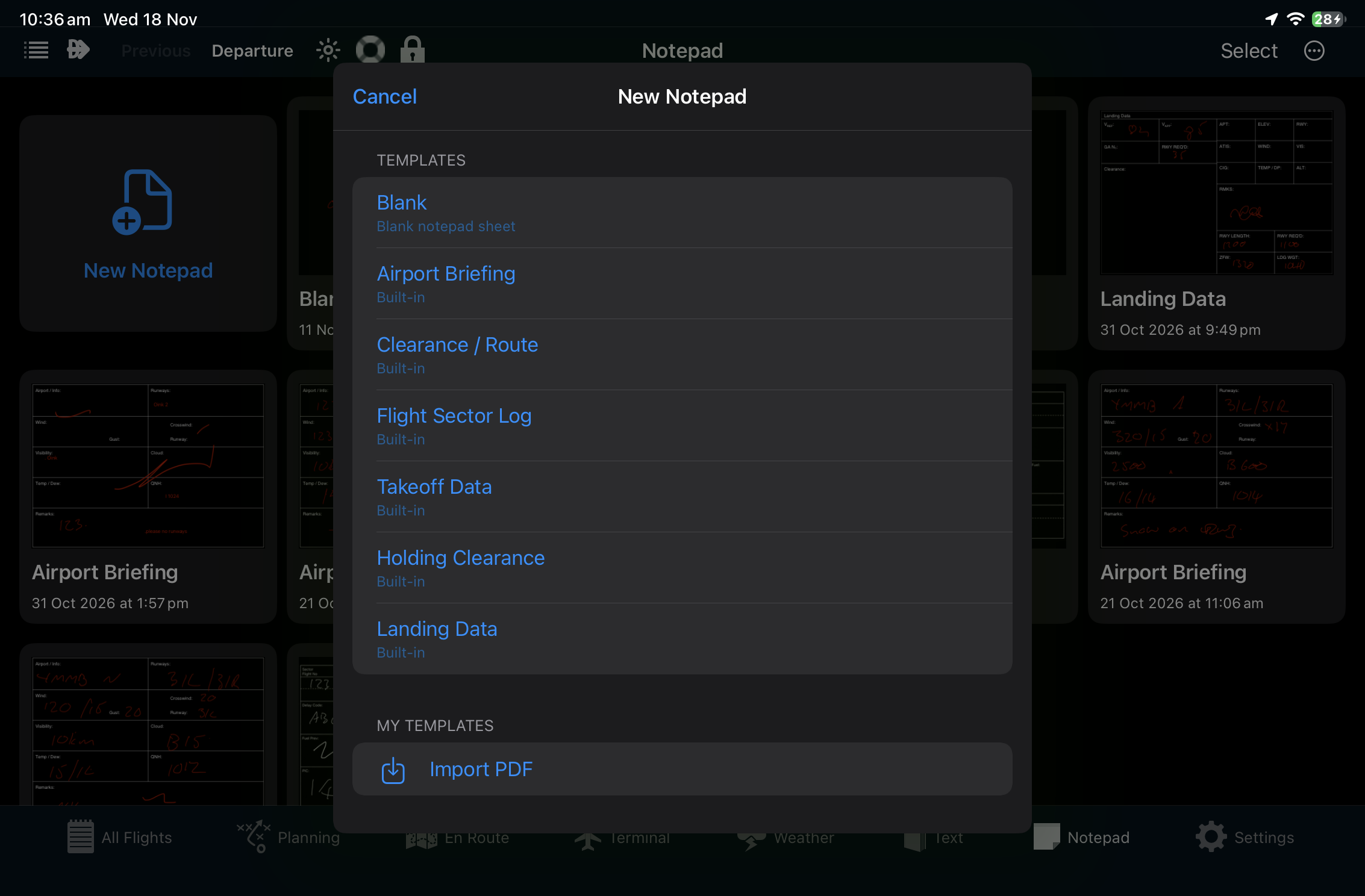
  1. Open Notepad. If your tab bar groups it under More, open it from there.
  2. Tap New Notepad and choose Blank or a built-in template. Options include Airport Briefing, Clearance / Route, Flight Sector Log, Takeoff Data, Holding Clearance and Landing Data.
  3. To use your own form, send a PDF to the app and select Notepad Template.
New Notepad on iPad showing the built-in templates and the Import PDF option under My Templates
Choose a built-in form or import a PDF under My Templates.

Tap Close to return to the library. Your sheets are saved on that iPad, with the newest sheets shown first. Tap a sheet to reopen it or use the arrows below an open sheet to move between sheets.

Write, type and edit

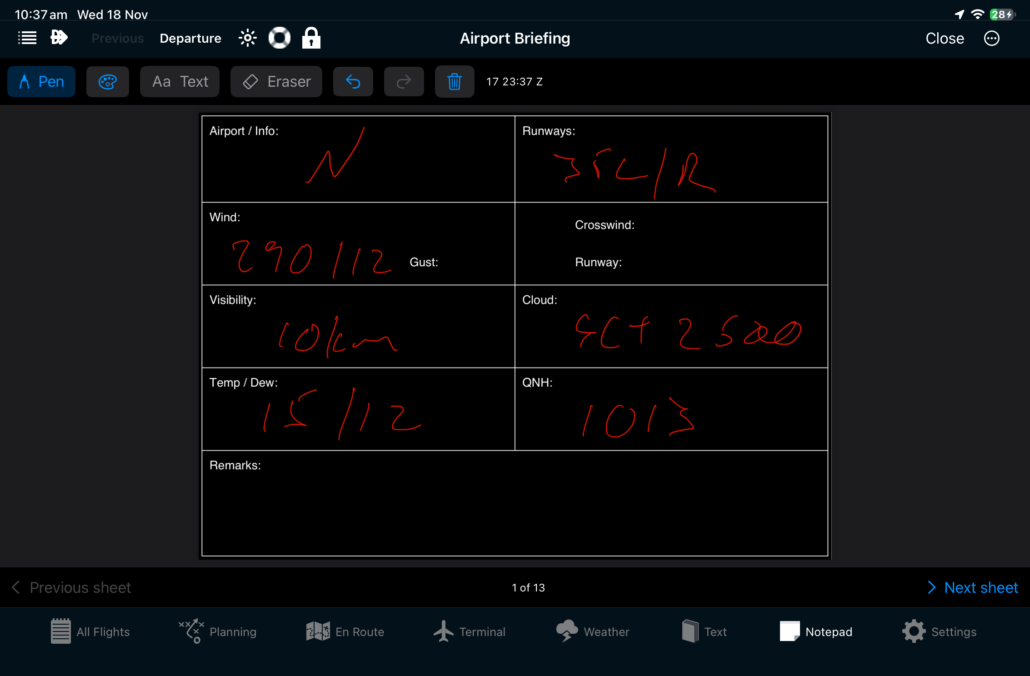
  • Tap Pen to write or sketch with Apple Pencil or a finger. Tap the palette to change the ink colour or line thickness.
  • Tap Text, then tap where you want the text to go and type directly on the sheet. With Apple Pencil and Scribble enabled in iPad settings, you can write in Text mode to create editable text. Tap existing text to edit it and drag the move handle to reposition it.
  • Use Eraser to remove ink, Undo or Redo to step through edits, or Clear to remove all annotations from the current sheet. The original form stays in place.
Airport Briefing sheet in the iPad Notepad with handwritten entries and Pen, Text and Eraser controls
An Airport Briefing sheet with handwritten entries added using Pen.

Print, share or add sheets to a Tech Log

For one sheet, open it and tap the Actions menu (the three dots). For several sheets, tap Select in the library and tap the sheets you want. Use Actions > Select All to select every sheet.

Choose Print for an AirPrint printer or Share to send or save a PDF. Your selected sheets are combined into a single PDF. If you use Tech Log, choose Add to Tech Log to save a PDF copy under Postflight for the open plan. If no plan is open, choose from the recently changed plans. You can keep editing the original sheets in Notepad.

Import PDFs on iPhone and iPad

Open the Import PDF screen

  • From AvPlan EFB: Open Text, scroll to the bottom and tap Import PDF. Browse to your PDF in the Files picker.
  • From another app: Open the PDF in Files or another app that can share the file, such as Mail or Safari. Tap Share and choose AvPlan EFB in the share sheet. If Safari only offers a web link, save the PDF to Files first and import it from there.
  • From Notepad on iPad: Open Notepad > New Notepad and tap Import PDF under My Templates.

Choose where to save the copy

Check the filename and page count in the preview. Edit the name under Save as, then choose a destination.

  • POH puts an aircraft handbook under Text > POH.
  • Documents puts a reference PDF under Text > Documents.
  • Notepad Template (iPad) saves a reusable form under Notepad > New Notepad > My Templates. Choose the template each time you want to start a fresh sheet. You can also preview or remove an imported template under Text > Notepad Templates. Sheets you already made from it stay in your library.
  • Tech Log Preflight or Tech Log Postflight attaches the PDF to that section of an existing trip. In Choose Trip, select the current plan if listed, or search by description, aircraft registration or route. If the trip is missing, open it in Tech Log and try the import again.

Tap Import, check the confirmation, then tap Done. AvPlan saves a copy and keeps the source file intact. If a trip attachment shows as queued, check the trip’s Tech Log after the upload completes. For a password-protected PDF, import an unprotected copy.

See the working behind Additional Fuel

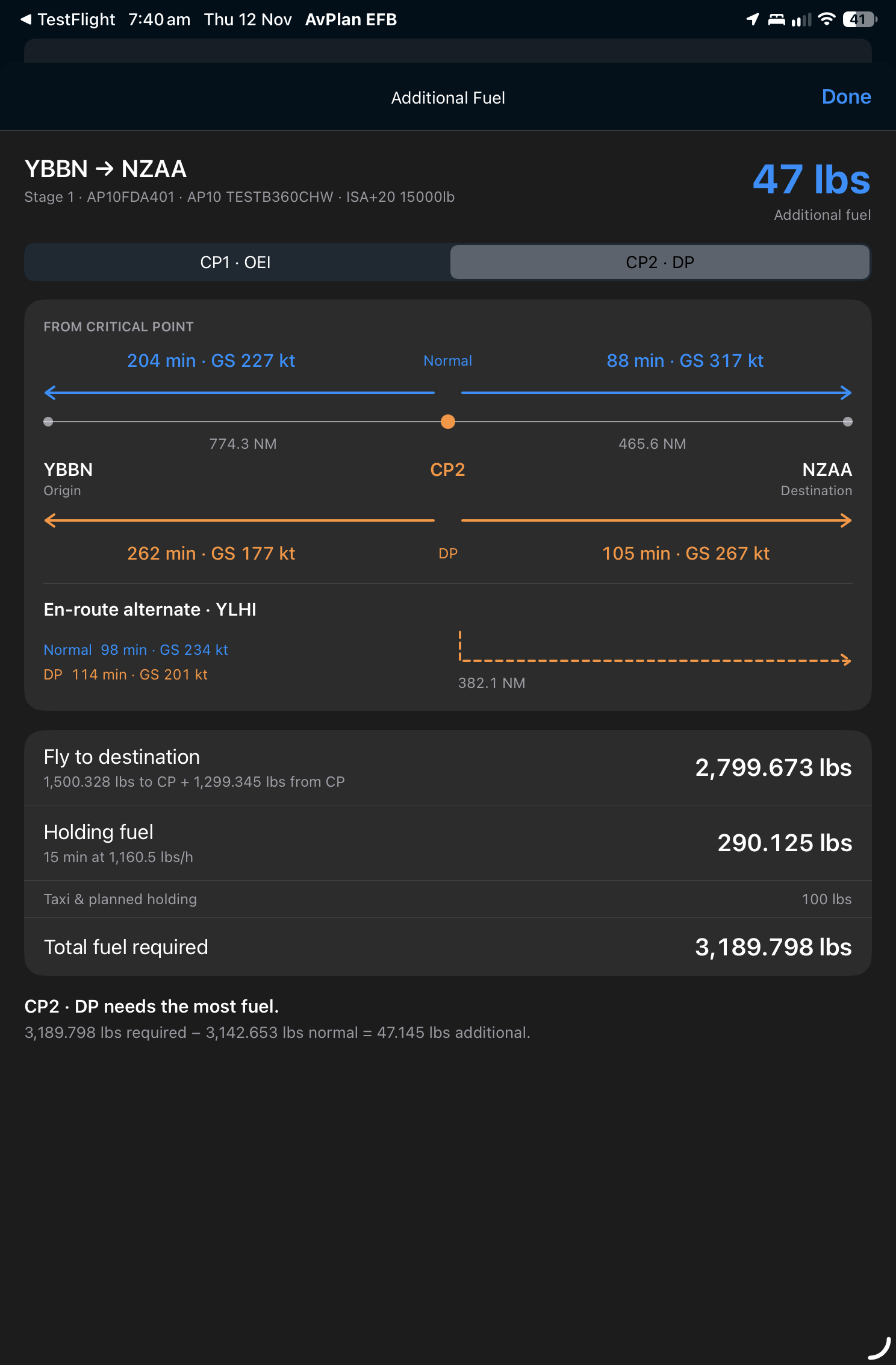
In the stage’s fuel plan, tap the information icon beside Additional Fuel when it’s available. Switch between CP1 and CP2 when both critical-point scenarios are configured. The diagram shows the distances, times and groundspeeds to the origin and destination under normal and degraded performance, with the en-route alternate shown when configured. Below the diagram you can review the fuel breakdown and see which scenario drives the additional fuel figure.

Additional Fuel page showing CP2 selected, the route diagram, en-route alternate and fuel breakdown
The Additional Fuel page shows the selected critical point and explains which scenario requires the most fuel.

Other improvements in 10.2

  • Offline Data. With a flight plan open, go to Planning > Offline Data to review coverage around your route. Tap Download at the bottom to request the missing maps and route weather together while you’re connected.
  • Weight and balance. Load-sheet signing checks the weight and balance limits. The lateral load-sheet PDF now honours the configured ramp allowance when checking eligible pre-taxi weights. Group aircraft weight-and-balance approvals refresh after synchronisation.
  • Flight planning. Degraded equal-time-point calculations use forecast winds when manual winds have not been entered. Reusing a flight plan clears the recorded fuel from the previous flight.
  • Everyday fixes. Improved Terminal document loading, fixed chart printing from Terminal, corrected Synthetic Vision roll and pitch responses, and fixed layout issues in Text and Settings on iPhone.

Find more guidance in the AvPlan EFB User Manual.

Related Articles

AvPlan

iOS 27.2: you can now upgrade

AvPlan EFB users can now upgrade to iOS 27.2. The update should resolve GPS issues experienced by some users on iOS 27.

Learn More
AvPlan

AvPlan Tech Logs: keep your flight paperwork together

Keep preflight and postflight paperwork connected to your flight with AvPlan Tech Logs. Discover how they fit your Enterprise workflow.

Learn More
AvPlan

iOS 27: please continue to hold off upgrading

We continue to advise AvPlan EFB users to delay upgrading to iOS 27, as some devices may experience GPS issues after the upgrade.

Learn More

Try AvPlan EFB for free

Download the app now to start your free 30 day trial

Or view our plans starting at $169/yr

Features

Solutions

  • Private Aviation
  • Business Aviation Solutions
  • SAR/EMS
  • Military Aviation

Subscriptions

  • Australian Subscriptions
  • New Zealand Subscriptions
  • US Subscriptions
  • European Subscriptions
  • Middle East Subscriptions
  • Worldwide Subscriptions
  • Digital Charting
  • ADSB Devices

Resources

  • Tips
  • Frequently Asked Questions
  • Learn
  • User Manuals
  • Video Tutorials

About

  • About AvSoft
  • Blog
  • Events
  • Media
  • Community
  • Contact
  • AvPlan Cloud Login
  • AvPlan Live Login

Electronic Flight Bag

Subscribe for updates

This field is for validation purposes and should be left unchanged.

Features

Solutions

  • Private Aviation
  • Business Aviation Solutions
  • SAR/EMS
  • Military Aviation

Subscriptions

  • Australian Subscriptions
  • New Zealand Subscriptions
  • US Subscriptions
  • European Subscriptions
  • Middle East Subscriptions
  • Worldwide Subscriptions
  • Digital Charting
  • ADSB Devices

Resources

  • Tips
  • Frequently Asked Questions
  • Learn
  • User Manuals
  • Video Tutorials

About

  • About AvSoft
  • Blog
  • Events
  • Media
  • Community
  • Contact
  • AvPlan Cloud Login
  • AvPlan Live Login
© 2026 AvSoft Australia Pty Ltd.
  • Privacy Policy
  • Terms of Use